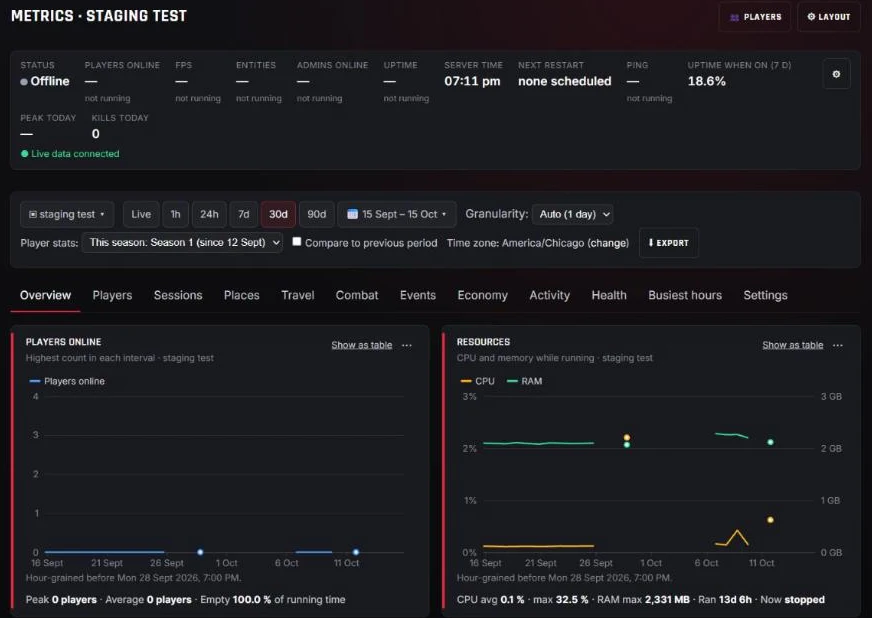
Every GameGrid server now has Metrics: the history of your server and of the people who play on it, in one place. Open your server in the control panel and choose Metrics in the sidebar, just below Events. It is there on every server of every game we host (7 Days to Die, DayZ, Enshrouded, Minecraft, Palworld, Valheim and Windrose), stopped and deactivated servers included, and only you and the people you give panel access to can see it.
One page, every question answered
Metrics is organised in tabs. Each one answers a question server owners ask:
| Tab | What it answers |
|---|---|
| Overview | How is my server doing? Players online, CPU and memory, server health, busiest hours, top players and more, on cards you can reorder |
| Health | Did it stay up? Availability per day, every outage with when, how long and why, how long starts take, CPU, memory, network and disk, backups, and game updates and mods |
| Busiest hours | When are my players on? A weekday-by-hour grid in your time zone, your top time slots and the best time for an event, with a link that opens the Event Manager at that time |
| Players | Who plays the most? A ranking by playtime, kills, deaths, K/D, distance and more. Every column is a real figure, never made-up points |
| Sessions | When, and for how long? Every session, how long sessions last and how many players were on together |
| Travel | Where do players go? Your server's own live map with where players spend time, the trails they took (press Play to replay them) and where they died |
| Places | Which places matter? Time spent, visits and visitors for the towns, points of interest, grid squares and other places your game's map has |
| Combat | Who died, and how? Deaths by cause and, where your game reports kills, the kill feed with weapon and distance, kill times and a kill map |
| Events | What happened? Stops, restarts and crashes, Event Manager and Command Manager runs, and the game's own events such as raids, bosses and blood moons |
| Economy | How is my economy doing? Coins earned against coins spent, how currency is earned, wealth distribution, the items bought most and the richest players, on servers that use the GameGrid economy |
| Activity | Everything, in order: joins and leaves, deaths, chat and commands, moderation and admin actions, and building where your game reports it |
| Settings | Your card layout, stats seasons, Player access and Import history from logs |
A tab appears where your game can supply it. A figure your game does not report is never drawn as a zero: it is simply not shown.
Uptime you can trust: a restart is not a crash
The Server health band shows when your server was running, starting or updating, stopped, crashed or unreachable, with a marker for every crash and every restart. Hover a marker to see why it happened. Every restart is named by its cause: you (from the panel, the API or the Discord bot), your scheduled restarts, the Event Manager, the Command Manager, an update or a move, crash recovery, or a server that exited by itself.
- Running, all hours is the share of the whole range your server was running.
- Uptime when meant to be on leaves out the time you meant it to be off, so stopping your server yourself never counts against it.
- Some games end their own session on a timer. Metrics files that as the game's planned exit, not as a crash.
Server history does not start from zero today: before the detailed record, Metrics fills in your server's history from the hourly records the platform already kept.
Players, sessions and profiles
Every player who has played on your server is in the Players list, and the Players button at the top of Metrics opens a searchable list of them. Each player has a profile: playtime and sessions, the names they have used, travel and places, combat, events, economy and activity. Wherever a game tells us a player's Steam account, that is who the player is, so one person is one player however they name their character.
Performance, the way your game measures it
The live status bar on your server's Overview and Metrics pages shows the status, players online, uptime, the next restart and today's peak, refreshing while you watch. Where your game reports them, it adds the server's frame or tick rate, the entities the world is simulating, admins online and your players' average ping, each named the way your game means it: FPS, TPS or Tick rate. Choose which details to show and drag them into your own order. The Health tab charts the same figures over any range you pick.
All your servers at once
Metrics in the main menu, under My Servers, puts all your servers side by side: server health and players online with a line per server, a table comparing availability, crashes, restarts and players, and a player directory across your servers.
Seasons, ranges, tables and downloads
- Wiping your world keeps every statistic. When you want a fresh start, start a new stats season. Starting one deletes nothing, and earlier seasons stay in the season picker.
- Pick Live, a preset range or your own dates, and tick Compare to previous period to see what changed. Every time is shown in your own time zone.
- Every card has Show as table, which shows exactly the figures behind the chart, and Download CSV. Export downloads every card on the tab at once.
- Import history from logs on the Settings tab reads your game's own logs still on your server and adds the sessions from before recording started, for games whose logs record players joining and leaving.
Metrics in Discord
Your GameGrid Discord bot brings Metrics to your community:
/metricsshows a summary, uptime, the busiest hours, top players, a player's stats, places and sessions. Replies are private to you; the summary, uptime and busiest hours can also be posted in the channel./leaderboardgives your community leaderboards for playtime, kills, distance travelled, coins earned, event wins and more. Set a board up with/leaderboard setupand the bot posts it on your schedule, editing the same message each time instead of filling the channel. A Milestones board celebrates players reaching big totals and your server setting a new record for players online./mylets each player see their own stats, playtime, travel, wealth and events, privately, with exactly the sections you choose to share. Any linked player can hide themselves from public leaderboards with/my leaderboard-hide./config summary-channelposts a daily or weekly summary of your server with chart images, and, once you switch kill posts on,/config killfeed-channelposts every kill to the channel you pick.
Metrics in the Customer API
The Customer API serves the same figures for your own website, tools and bots: server history, players and their profiles, sessions, travel and places, seasons, public leaderboards and the CSV datasets. If you allow it, players can also create a personal token that reads only their own figures. See API Scopes and Permissions and Player Self-Service: /my and Personal API Tokens.
Your players' privacy comes first
- Player statistics are recorded from 6 October 2026, when version 1.1.0 of our Privacy Policy took effect. Its section 1A describes everything Metrics records and how long each part is kept.
- A player's IP address is never shown: not on any page, in any download, in the API or in the Discord bot.
- Your players see nothing until you switch it on. In Metrics, Settings, Player access you decide, one switch at a time, whether share links show live positions, whether leaderboards are posted or public, whether players may use
/myand personal tokens, and whether kills are posted to Discord. Every switch starts off. - Chat text is shown only to the server's owner and administrators.
- When a player asks to be forgotten, Forget player on their profile deletes their positions, places, names and chat, and keeps their statistics as "Deleted player" so your totals stay right.
Guides
The full tour is Metrics: Your Server's History. Then:
- Metrics: Player List and Player Profiles
- Metrics: Stats Seasons and Wiping Player Stats
- Metrics Leaderboards: Top Players in Discord
- Metrics and Your Players' Privacy
Every game reports something different, and Metrics shows what yours can. Your game's guides:
Open any of your servers, choose Metrics, and see the whole story.