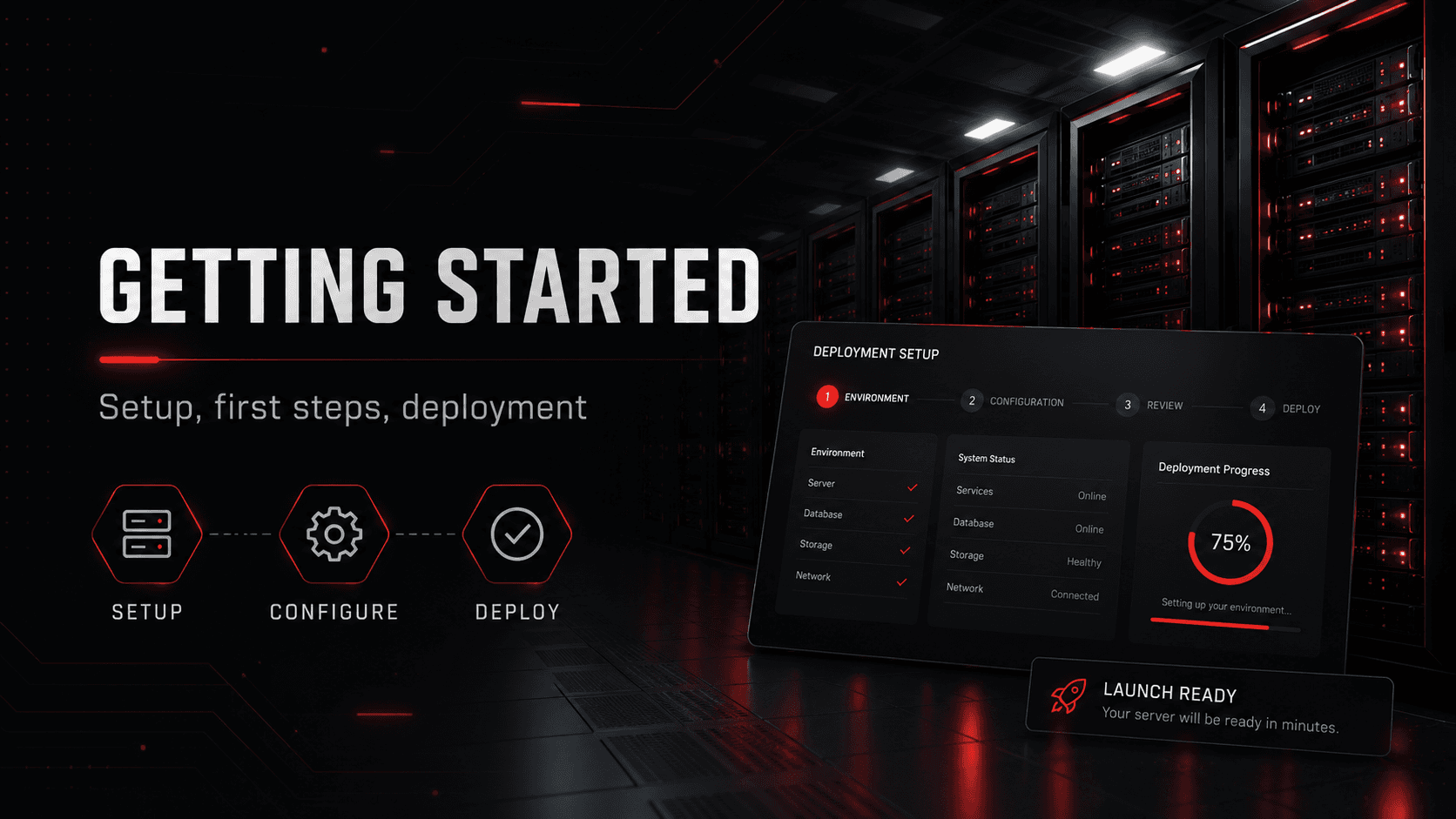
Instant Deployment: Online in Minutes
How GameGrid deploys your game server automatically with zero manual configuration.
How Instant Deployment Works
When you create a server and choose a game, GameGrid provisions it for you — you pick a game and a name, and nothing else is asked of you.
The files come from the game’s own publisher: SteamCMD for every game whose dedicated server is published on Steam, and the official download for Minecraft and its server flavours. Nothing is repackaged by us.
How long that takes depends on the game’s download size and whether the files are already on the host you were placed on. Watch the server card on your Dashboard: it reads "Setting up" ("Your server is being set up.") and then "Installing" until it is ready.
What Happens During Deployment
1. Placement: a host in your plan’s region is chosen — the least loaded one that is healthy, is not being drained, has a free slot and has recently checked in. If none can take it, the server waits and is placed as soon as one can, rather than failing.
2. Addressing: your server is given its own block of 100 ports on that host, and its firewall rules are opened for them. Ports are allocated by the platform and are not customer-editable; two servers on this platform never share one.
3. Game files: the server downloads them from the official source.
4. Configuration: that game’s default settings are written, and the server name you chose is applied.
5. Accounts: an FTP/SFTP account is created for the server. Its credentials appear on the Overview tab.
6. Ready: the server is left STOPPED, not started. That is deliberate — it gives you the chance to set the password, the player limit and anything that only applies to a world that has not been created yet. Press Start in the status bar when you are ready.