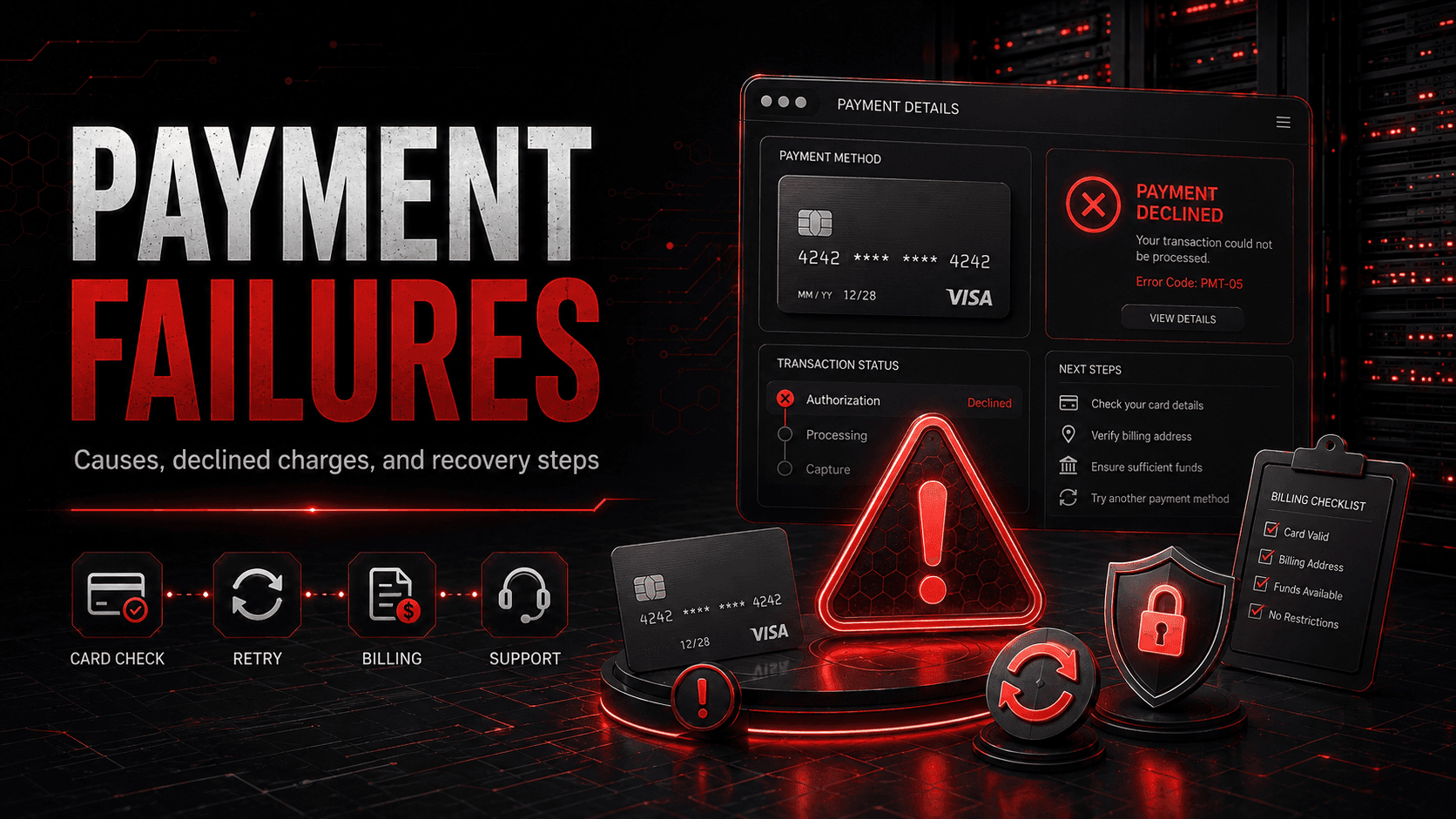
Payment Failures: Causes and Solutions
Learn why payments fail (declined card, insufficient funds, expired card) and how to check your transaction history for the specific reason.
Where to Check Failed Payments
If your payment was declined or failed, you can see the specific reason in your transaction history. Go to Billing and click the Transactions tab. Failed payments appear with a red "Failed" badge and show the decline reason (such as "insufficient_funds" or "card_declined") in the description.
Each failed attempt is recorded separately, so a subscription that fails and is retried leaves one row per attempt, each with its own reason. Hovering the red badge shows the full message the bank returned.
Insufficient Funds
Your card or bank account does not have enough money to cover the payment.
What to do: add funds, or change the card. "Manage payment method" on the Billing page opens the Stripe billing portal, where you can replace the card, update the billing address and tax ID, and download past invoices; the retry then happens on the subscription’s own schedule.
Card Declined
Your bank or card issuer declined the payment. This can happen for security reasons, fraud detection, or account restrictions.
What to do: Contact your card issuer to find out why the payment was declined. They can usually tell you the specific reason and help you resolve it.
Expired Card
The card you have on file has expired and is no longer valid.
What to do: replace it. Use "Manage payment method" on the Billing page, or enter a new card at checkout. That button needs an existing purchase to attach to — if you have not bought anything yet, there is nothing to change.
Incorrect Card Details
The card number, expiration date, or CVC code was entered incorrectly.
What to do: Double-check all card details and try again. Make sure the card number has no spaces or dashes and the expiration date and CVC are correct.
Do Not Honor
Your bank declined the payment for an unspecified reason. This is a generic decline from the card issuer.
What to do: Contact your card issuer for more information. They may need to authorize the transaction or remove a hold on your account.
Lost or Stolen Card
The card has been reported as lost or stolen, and all transactions are blocked.
What to do: Use a different payment method. If you believe this is an error, contact your card issuer immediately.
Processing Error
A temporary issue occurred while processing your payment. This is often a network or bank-side problem.
What to do: Wait a few minutes and try again. If the problem persists, try a different payment method or contact support.
3D Secure Authentication Failed
Your bank requires additional verification (3D Secure) and the authentication was not completed or failed.
What to do: Make sure you complete the 3D Secure verification step during checkout. If you closed the verification window, try again and complete all steps.
Recurring Subscription Payments
For recurring subscriptions, a failed payment is retried automatically by Stripe over the following weeks. Each attempt appears in your transaction history with its own reason, so you can see how many have been made.
If the retries all fail, the plan lapses. Your servers are suspended rather than deleted: the Dashboard shows them as "Deactivated" with a "Renew Now" button and a countdown to permanent deletion, so there is a window to put a working card on and get your plan back.
As soon as the unpaid invoice is paid, whether Stripe's next retry succeeds or you pay it yourself, the plan is active again and the Deactivated label goes away, and we send you one email to say so, with the date the plan is now paid until. Your servers come back stopped, not running: open each one and press Start. This works only while the 30 days have not run out. After that the servers are deleted, and a payment that arrives later does not bring them back, so contact support if that happens.
Update the card with "Manage payment method" on the Billing page before that countdown runs out.
Account credit is used first on every renewal, so a renewal your credit covers in full never reaches your card at all; only the part your credit does not cover is charged to the card.
Still Having Trouble?
If you have tried the steps above and your payment is still failing, open a support ticket from the Support page and our billing team will help you resolve the issue.
You can also email us directly at billing@wdcgamegrid.com for billing-specific questions.