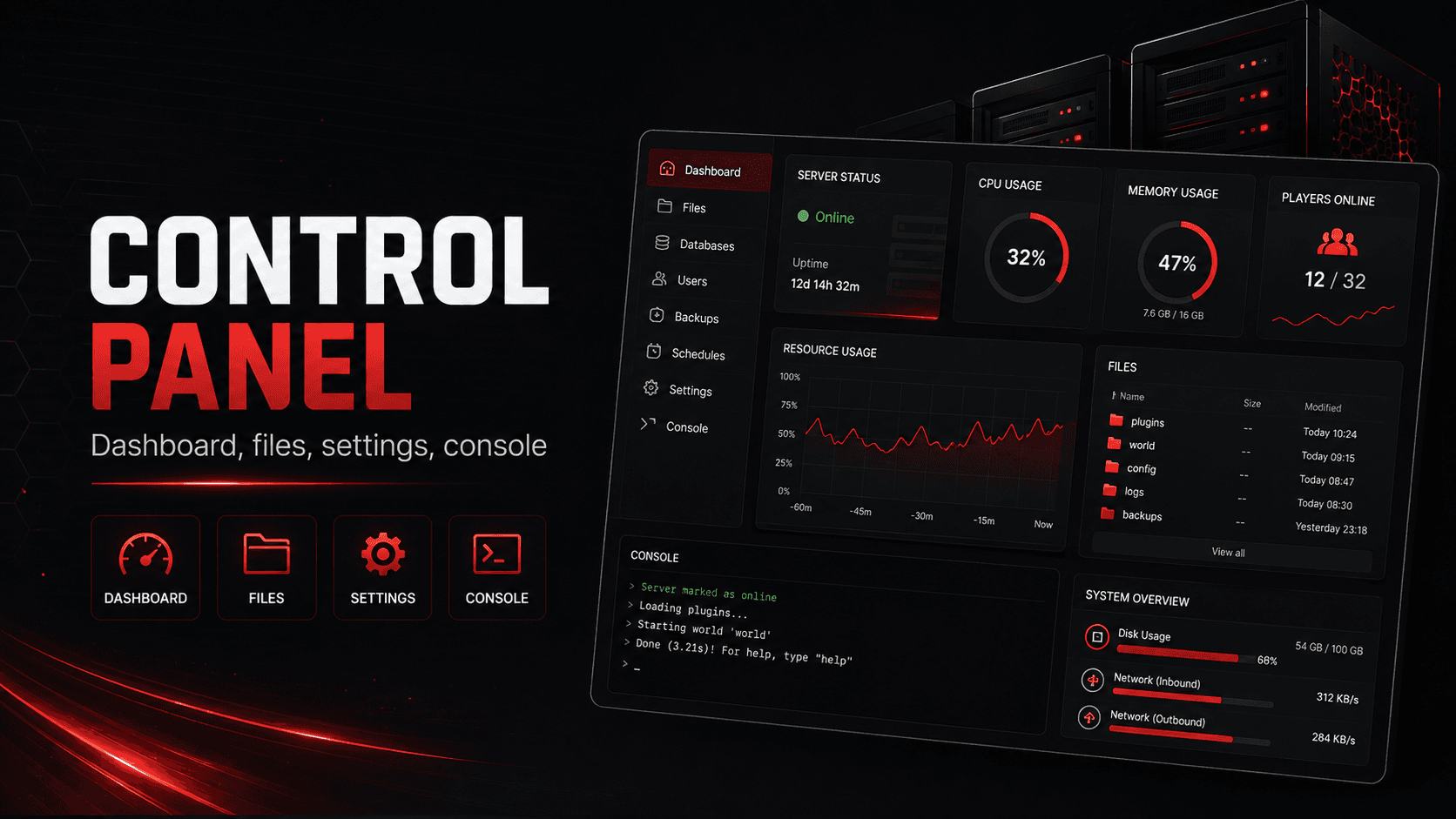
Using the Live Console
Watch your server’s output as it happens, and send commands straight to the game.
Reading the output
Open the "Console" tab in your server panel. Output streams in live as the server produces it, and each line carries the time it arrived.
A silent console with a Live badge means nothing is being logged. That is normal on an idle server, and it is not the same thing as a broken connection.
Error lines are prefixed with [ERROR]. Commands you send are prefixed with [CMD]>. The header counts output lines, error lines and commands as they arrive.
The view keeps the most recent 2,000 lines by default; the Keep menu in the toolbar changes that to 500 or 5,000, and your browser remembers the choice. Older output is in the game’s own log files, which you can read or download from the Files tab.
The stream pauses while the browser tab is in the background, and reconnects when you come back to it.
The Live, Connecting and Reconnecting badge
The last item in the header is a badge for the stream itself. It is what tells a quiet server apart from a dropped connection.
| Badge | What it means |
|---|---|
| Live | Connected to your server’s output |
| Connecting… | The stream is opening |
| Reconnecting… | The connection dropped and is being retried every few seconds. Output already on screen stays where it is |
Auto-scroll, Refresh and Clear View
Three controls sit above the output.
| Control | What it does |
|---|---|
| Auto-scroll | Keeps the view pinned to the bottom. It turns itself off as soon as you scroll up to read something — tick it again, or scroll back to the bottom, to resume |
| Refresh | Reloads the stored history |
| Clear View | Empties your own view only. It changes nothing on the server and nothing in its log, and reloading the page brings the history back |
Sending Commands
Type a command in the box at the bottom and press Enter, or click "Send".
Do not put a slash in front of it. The console is the server’s own terminal, not the in-game chat box, so it is
listrather than/list.
Valheim takes a shorter list
Every game on the platform has a command box, Valheim included. Valheim’s commands travel through the GameGrid Bridge plugin rather than a terminal, so it accepts the verbs the bridge exposes — broadcast, announce, save, spawn, players, info and health — and nothing else. Kick, ban, shutdown and devcommands are not on the bridge and stay in the in-game F5 console.
The same bridge actions are also buttons on Valheim’s Game Tools tab, if you would rather click than type.
What your game accepts
Commands are game-specific. See your game’s admin-commands article for the full list.
Palworld is a short, fixed set of commands rather than a full command line — broadcast, save, shutdown, stop, kick and the PalDefender commands. The Command Manager’s catalogue for your server lists them, and so does Palworld Admin Commands.
Reading the reply
Your command appears in the output prefixed with [CMD]>, followed by whatever the server answered. Some games answer on the connection and the reply appears immediately; others only write to their log, and the console says so rather than leaving a blank where the answer should be. A command the server refuses is reported as refused, with the reason where there is one.
If nothing appears at all, check the server is running — a stopped server has no console to talk to.