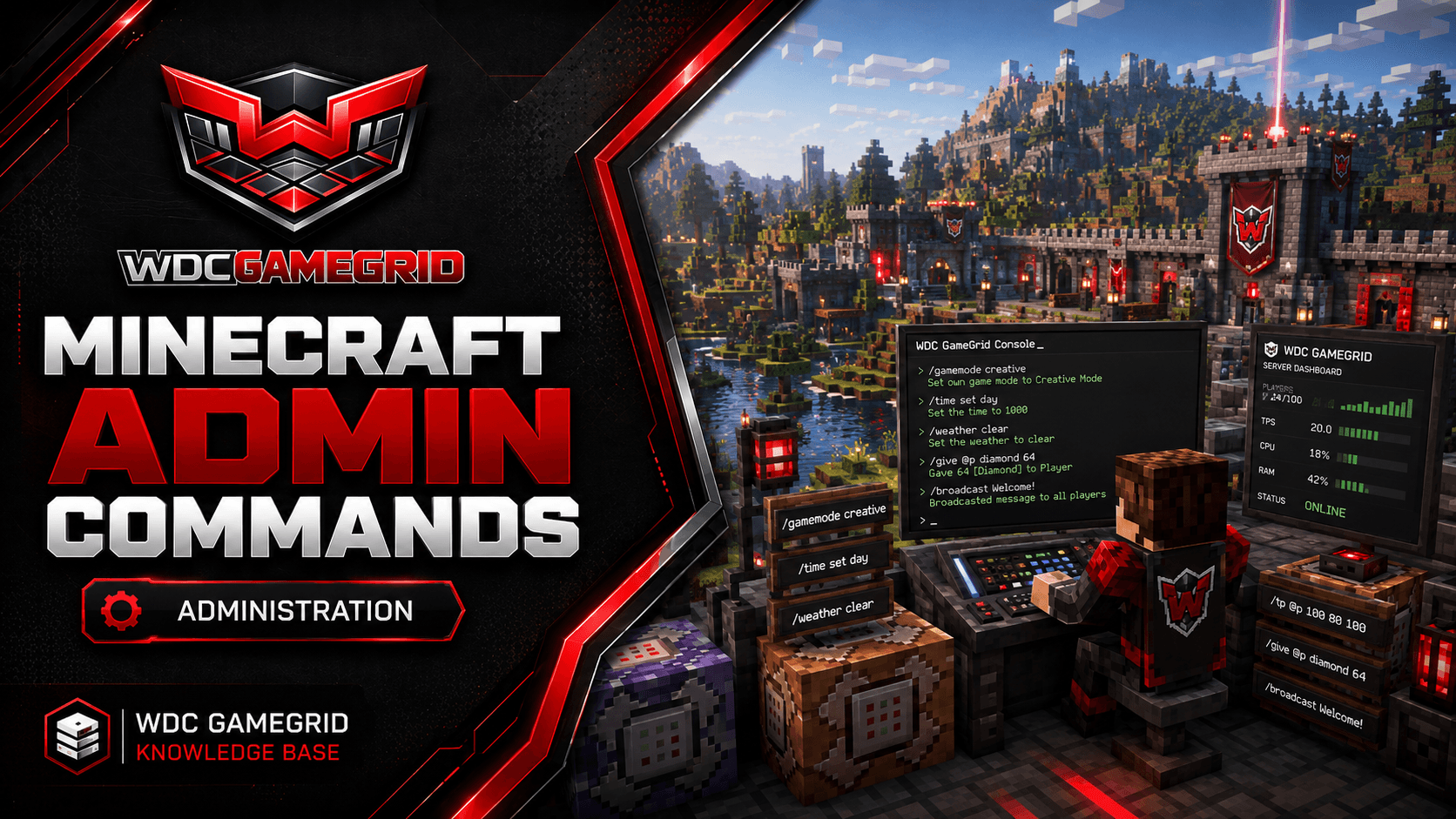
Minecraft Admin Commands
Essential Minecraft server commands for OP management, player control, and world editing.
Becoming an Operator
You must be an op to use admin commands in-game.
Add yourself as op from Settings > Player Management > "Admins / Operators", or run "op <yourname>" in the Console tab.
Ops are stored in ops.json at the server root. You can edit it from the Files tab with the server stopped.
A new op gets the level from op-permission-level in Settings, which defaults to 4 (full control). See OP Permission Levels.
Player Commands
/tp <player> <target> - teleport one player to another.
/tp <player> <x> <y> <z> - teleport to coordinates.
/gamemode <mode> [player] - change gamemode for yourself or another player.
/kick <player> [reason] - kick a player.
/ban <player> [reason] - ban a player permanently.
/pardon <player> - unban a player.
/ban-ip <ip> - ban an IP address.
/pardon-ip <ip> - unban an IP address.
/op <player> - make a player an operator.
/deop <player> - remove operator status.
World and Time Commands
/time set day - set time to day.
/time set night - set time to night.
/time set <value> - set time to a specific tick value.
/weather clear - clear weather.
/weather rain - make it rain.
/weather thunder - make it storm.
/gamerule <rule> <value> - change a game rule (e.g. keep_inventory, mob_griefing). Minecraft renamed every game rule to snake_case in 1.21.11, so the keepInventory-style names in older guides no longer work.
Item and Block Commands
/give <player> <item> [count] - give items to a player.
/clear [player] [item] - clear inventory or specific items.
/setblock <x> <y> <z> <block> - place a block.
/fill <x1> <y1> <z1> <x2> <y2> <z2> <block> - fill a region with blocks.
/clone <x1> <y1> <z1> <x2> <y2> <z2> <x> <y> <z> - copy a region.
Server Commands
/save-all - force-save the world.
/save-on, /save-off - enable or disable auto-saving.
/stop - shut down the server gracefully.
/list - list online players.
/whitelist add/remove <player> - manage the whitelist.
/whitelist on/off - enable or disable the whitelist.
/tps - show server ticks per second (Paper only). 20 TPS = perfect. Below 15 = noticeable lag.
These can all be run from the GameGrid Console tab without being in game. Type them there without the leading slash - the console is not chat, and that is the form the platform itself uses.
Two of these have a panel equivalent that is easier to get right and persists properly: bans and the whitelist are in Settings > Player Management.
Running these on a schedule
Any of the commands above can be put on a repeating schedule — a save every half hour, daylight each morning, a restart warning that counts down accurately, an item for everyone online — from the Command Manager tab on the Event Manager page.
Minecraft has one advantage here that no other game we host does: @a is part of the game's own command language, so "give this to everybody online" is a single command rather than one per player.
It also has one quirk worth knowing before you read a log. Minecraft's console returns nothing, so a scheduled command is recorded as "Sent, unconfirmed" rather than given a success it cannot be checked against.
The full walkthrough, the schedulable commands (24 on Vanilla and Fabric, 25 on Forge and NeoForge, 26 on Paper), and the schedules worth building are in Minecraft Command Manager.