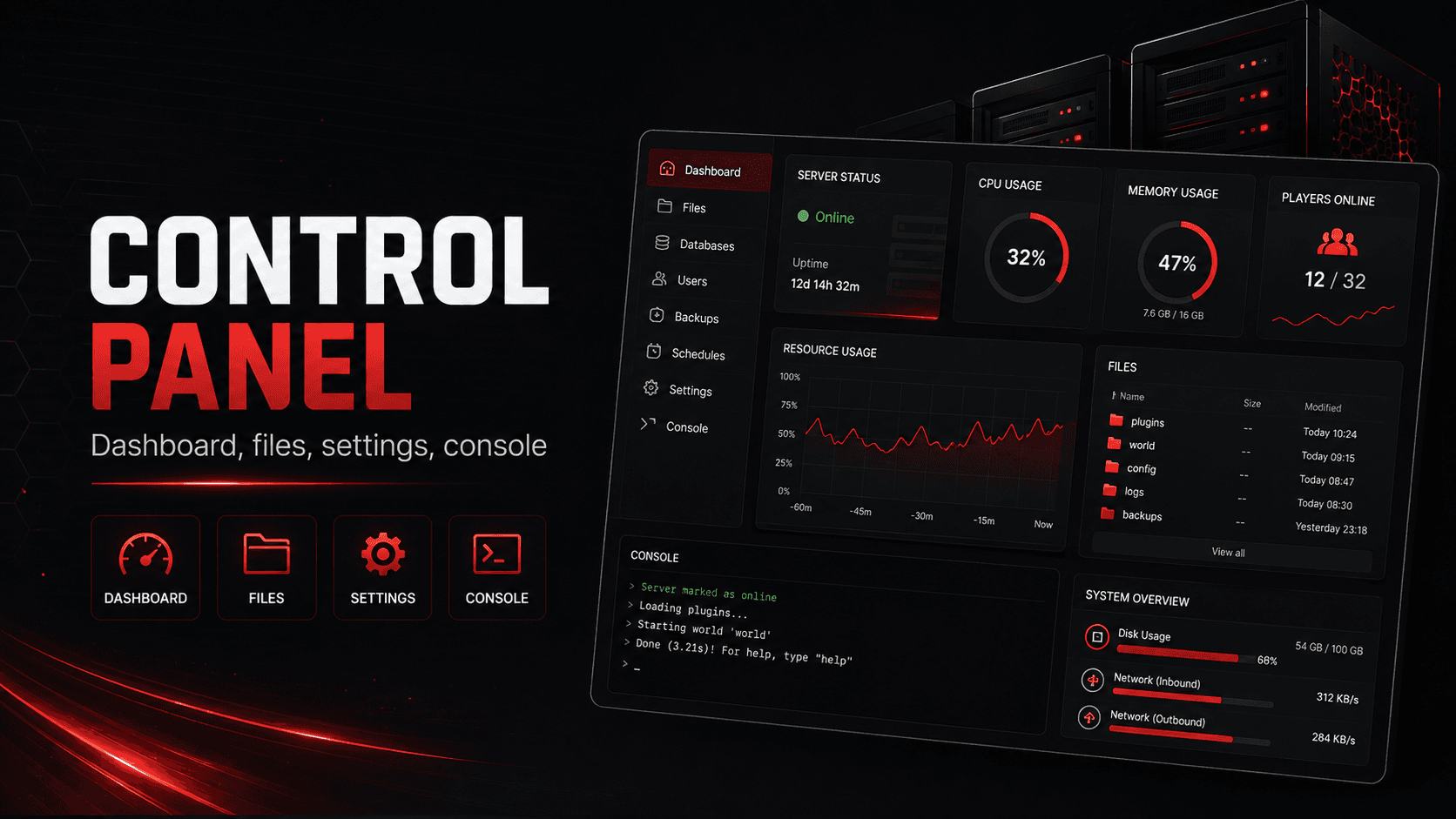
Understanding Your Dashboard
A tour of the GameGrid dashboard - server cards, status indicators, and quick actions.
Server Cards
The Dashboard is headed "My Servers". Your servers are grouped inside the plan that pays for them: each plan card shows its name, how many of its slots are in use, its region, and the servers in it.
A server card shows the name, the game, a colour-coded status pill, the connect address and the player count. The pill reads Online, Offline, Starting, Stopping, Restarting or Failed, among others, and a line under it explains the states that need one: a server still being built reads "Setting up" with "Your server is being set up.", and a server whose plan has lapsed reads "Deactivated" with "Server deactivated - renew your plan to resume." A server on a plan that renewed with fewer slots than servers reads "Stopped — over slot limit": every server on that plan stays stopped until you delete servers down to its slot count or add slots, and nothing is deleted for you.
The same pill is in the status bar at the top of every tab of the server panel.
Click "Manage" to open the server panel, which has tabs for Overview, Settings, Events, Files, Console, Mods, Admin and Backups, plus Economy, Live Map, Game Tools or Windrose Plus where the game has them.
Quick Actions
Each server card has four main links — Manage, Console, Settings and Files — then smaller links for Mods and Backups, plus Economy and Live Map on the games that have them. A More tools button opens the rest: Admin, Event Manager, Command Manager and your game's own tools. Accounts whose role allows it also get a red Delete.
The "Manage" link opens the Overview tab, where the address, resource usage and start/stop controls are.
If a new build of your game has been detected, an "Update available" badge appears on the card. Applying it is done on the Admin tab.
Server Bundles
Each plan card shows "N of M slots used" beside its name, and its region as a pill on the right. You can rename a plan by clicking its name.
While a slot is free, a "+ Add Server" button sits at the bottom of the card and takes you to Add Server to Plan, where you pick the game and name the server.
When every slot is in use the button is replaced by "All slots in use - delete a server to switch games.", with a link to save its world to your Vault first. Deleting a server frees its slot; see Swap Games, and Switching Games and Keeping Your World to keep the old world and load it back later.
"Manage Plan" next to it is where you add slots (charged now, prorated to your plan's unchanged renewal or end date; your account credit is used first and anything left is charged to your card) or, on a monthly plan, set fewer slots from your next renewal, with an Undo until then. The billing box in the corner of the card shows the plan name, its status, and either the next billing date or how long is left on a one-time plan.